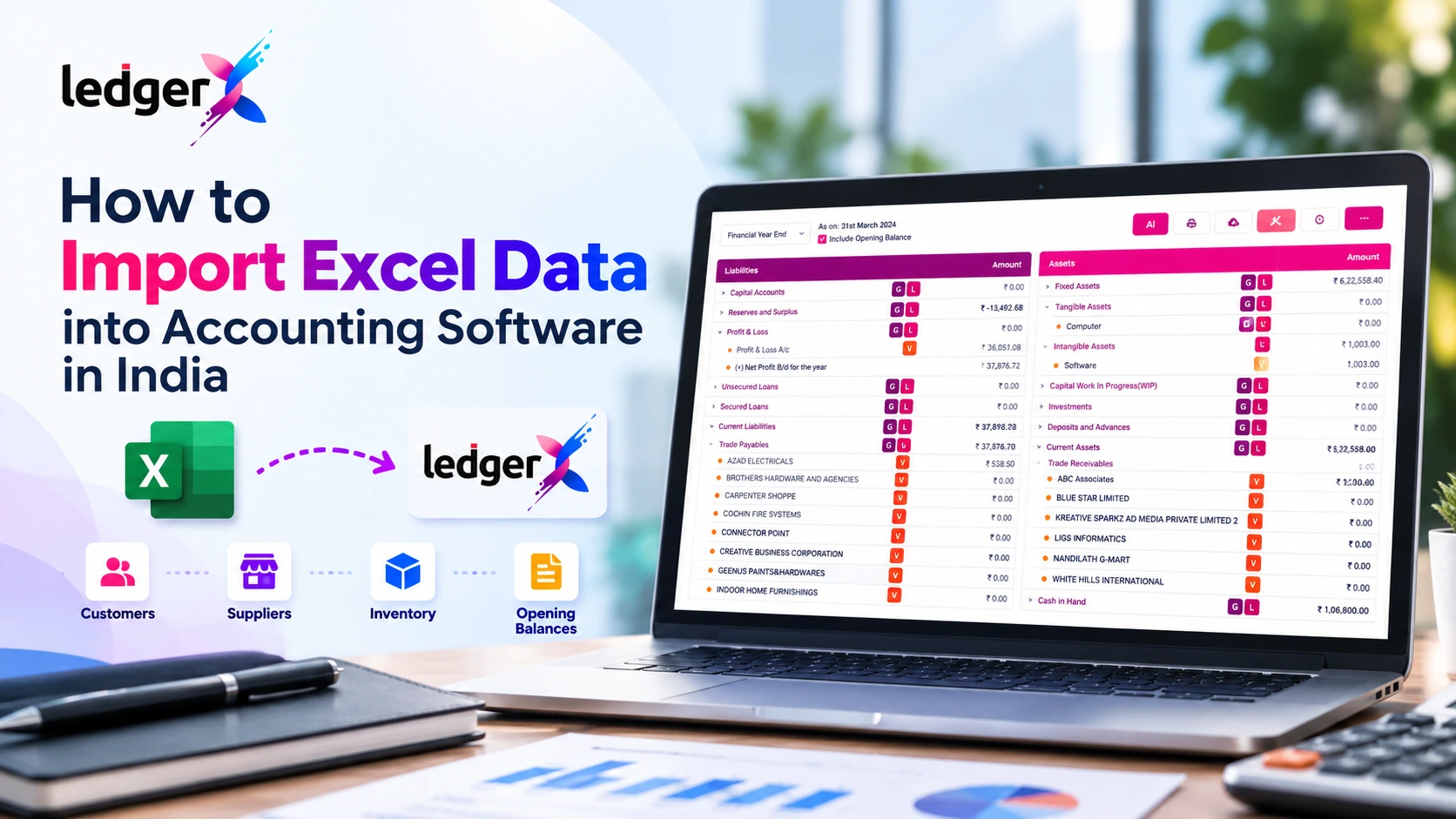
How to Import Excel Data into Accounting Software in India
Many Indian businesses maintain their accounting records in Excel before moving to accounting software. Spreadsheets are useful for basic calculations and record-keeping, but managing invoices, inventory, customer balances, expenses and financial reports becomes more complicated as a business grows.
Moving existing records into accounting software can reduce repetitive data entry and make ongoing accounting easier. However, the migration needs to be planned carefully. Incorrect opening balances, duplicate customer records or incomplete inventory information can affect the accuracy of future accounts.
This guide explains how to import Excel data into accounting software in India, which records to prepare, how to check the data before importing it, and what to verify after migration.
Why Import Excel Data into Accounting Software?
Excel gives businesses flexibility to organise information, but accounting processes often require connected records across sales, purchases, inventory, payments and financial reports.
Accounting software can help bring these records together.
Common reasons businesses move from Excel include:
- Managing sales and purchase invoices in one system.
- Maintaining customer and supplier records.
- Tracking inventory and stock movements.
- Recording expenses and payments.
- Preparing profit and loss statements and balance sheets.
- Maintaining more consistent accounting records.
- Reducing repetitive manual calculations.
The aim is not simply to transfer spreadsheet files. It is to establish accurate, usable accounting records in the new system.
What Data Should You Prepare Before Importing?
Before moving to accounting software, identify which records need to be transferred. The required data depends on your business, the software's import features and your migration plan.
1. Customer Records
Prepare a list of customers with relevant details, such as:
- Customer name
- Contact information
- Billing address
- GSTIN, where applicable
- Opening balance, if supported and required
Use a consistent format for names and contact details. Remove duplicate customer records where possible.
2. Supplier Records
Supplier data may include business names, contact details, GSTINs, addresses and outstanding balances.
Review supplier records carefully so that the same supplier is not entered multiple times under slightly different names.
3. Product and Inventory Data
Businesses that maintain stock should prepare a product list containing the fields supported by the accounting software.
Depending on the system, these may include product names, item codes, units of measurement, tax classifications, selling prices, purchase prices and opening stock quantities.
Inventory migration requires special care because quantity, valuation and unit information must be consistent.
4. Chart of Accounts and Ledger Data
Prepare the relevant ledger accounts, such as cash, bank, sales, purchases, expenses, capital, loans, receivables and payables.
The target software may use a predefined chart of accounts, so check whether existing accounts need to be mapped to its account structure.
5. Opening Balances
Opening balances represent the financial position carried forward from the previous accounting period or the date on which the new system begins.
Depending on the migration scope, these may include:
- Cash and bank balances
- Customer outstanding balances
- Supplier outstanding balances
- Inventory value
- Loans and liabilities
- Capital and other equity balances
The balances should agree with the closing records from the previous accounting system. Do not import opening balances without reconciling them.
6. Historical Transactions
Some businesses need only opening balances and master records. Others need previous invoices, purchase transactions, receipts, payments and journal entries.
Decide whether historical transactions must be migrated or whether the new system will begin recording transactions from a defined date. The choice affects reporting and reconciliation.
Step-by-Step Process to Import Excel Data into Accounting Software
Step 1: Review the Existing Excel Files
Identify every spreadsheet containing information that needs to be migrated.
Check the date range, data owner, spreadsheet structure and whether the records are complete. Keep a separate backup of the original files before making changes.
Step 2: Download the Import Template
If the accounting software provides an import template, use it instead of creating your own format.
A template helps you identify the required columns, data types and formatting conventions. Different modules may require different templates for customers, suppliers, items and opening balances.
Do not assume that every accounting application supports importing every type of transaction.
Step 3: Clean the Data
Before importing, check for:
- Duplicate customer and supplier records
- Blank mandatory fields
- Incorrect dates
- Inconsistent item names
- Extra spaces and spelling variations
- Invalid GSTINs or other tax details
- Amounts stored as text
- Incorrect number formats
- Missing product units
- Negative quantities or balances that need verification
For example, a spreadsheet might contain the supplier names “ABC Traders” and “ABC Traders ” with an extra space. Depending on the import process, these could create duplicate records.
Cleaning the spreadsheet first can prevent avoidable errors.
Step 4: Match Spreadsheet Columns to Software Fields
Map each Excel column to the corresponding field in the accounting software.
For example:
| Excel column | Possible software field |
|---|---|
| Customer Name | Customer Name |
| GSTIN | GST Identification Number |
| Product Code | Item Code |
| Opening Quantity | Opening Stock Quantity |
| Opening Balance | Opening Account Balance |
| Transaction Date | Date |
The exact field names and available mappings depend on the software. Confirm the mapping before proceeding.
Step 5: Standardise Dates and Amounts
Use the date format requested by the software. Check whether amounts should be entered as numbers without currency symbols or commas.
Also confirm whether amounts are tax-inclusive or tax-exclusive, where applicable. A formatting difference can produce incorrect values or cause an import to fail.
Step 6: Import a Small Test Batch
If the software supports test imports or importing a limited number of records, use that option first.
Check whether the imported data appears in the correct fields. Verify a few records against the original Excel spreadsheet before importing the complete dataset.
Step 7: Review Import Errors
If the system reports errors, read the error messages and correct the source data.
Typical issues include missing required fields, invalid dates, duplicate identifiers, unsupported formats and references to accounts or items that have not yet been created.
Correct the spreadsheet and follow the software's instructions for retrying the import. Avoid repeatedly importing the same records without checking whether previous attempts were partially successful.
Step 8: Verify the Imported Records
After importing, compare the new records with the source spreadsheets.
Check record counts, customer and supplier balances, inventory quantities, ledger balances and any imported transactions.
For financial data, reconcile the opening balances with the previous system's closing balances. Investigate discrepancies before using the new system for regular business transactions.
Example: Moving a Small Business from Excel to Accounting Software
Consider an Indian trading business that maintains the following records in Excel:
- 250 customer records
- 80 supplier records
- 500 inventory items
- Customer and supplier outstanding balances
- Opening stock quantities and values
Before migration, the business should clean and standardise the customer, supplier and product spreadsheets.
It should then use the import templates supported by its accounting software, map the required fields, and test a small batch. Once the records are imported, the business should compare customer balances, supplier balances and stock values with its original records.
Only after verifying the imported data should the business begin using the new system for regular invoicing and accounting.
This process helps reduce migration errors and provides a clearer starting point for future financial reports.
Common Mistakes to Avoid During Excel Data Migration
Importing Unverified Balances
Opening balances should match the agreed migration date and the records being carried forward. Unverified figures can affect financial statements and outstanding payment reports.
Importing Duplicate Records
Duplicate customers, suppliers or products can create confusion in invoicing and reconciliation. Clean and standardise master data before importing it.
Ignoring Tax Information
Businesses using GST invoicing should check relevant GSTINs, tax classifications and other required details. Do not assume that a spreadsheet's tax columns will automatically map correctly.
Migrating Without a Backup
Keep the original files and a separate copy of the cleaned data. This gives you a reference for investigating discrepancies.
Assuming Every Excel File Can Be Imported Directly
Accounting software differs in the formats and transaction types it supports. Some systems may require a specific template or additional manual steps.
Check the import capabilities of the software before beginning a full migration.
Can You Import Excel Data into Accounting Software Without Losing Records?
It is possible to migrate records reliably, but the outcome depends on data quality, the software's import capabilities and the verification process.
To reduce risk:
- Keep a backup of the original files.
- Define the migration date and scope.
- Clean and standardise the spreadsheets.
- Use the software's supported import templates.
- Test the import when possible.
- Reconcile opening balances and important totals.
- Preserve supporting documents and migration records.
For complex migrations involving historical transactions, multiple branches or large inventory datasets, professional accounting or software support may be useful.
How LedgerX Can Help After Migration
After preparing and migrating your records, an accounting platform can help you manage ongoing business transactions more consistently.
LedgerX provides accounting features for Indian businesses, including GST invoicing, sales and purchase management, expense tracking, inventory management and financial reporting.
These features can help businesses maintain their ongoing accounting records in one place. Before starting a migration, confirm the current LedgerX import options and supported file formats for the particular records you want to transfer.
Explore LedgerX accounting software to learn more about its features.
Frequently Asked Questions
Can I import Excel data into accounting software?
Yes, many accounting applications support importing selected records from Excel or CSV files. The available data types and required formats vary by software.
What data should I migrate first?
Start by defining the migration scope. Customer, supplier and product records are common starting points, followed by opening balances and any required historical transactions.
Can I import opening balances from Excel?
This depends on the accounting software. If supported, prepare the balances carefully and reconcile them with the previous accounting system before using them.
Should I import all historical transactions?
Not necessarily. Some businesses need only opening balances and master records, while others require historical invoices and ledger transactions. Decide based on reporting, compliance and operational requirements.
What should I do if an import fails?
Review the error messages, correct the spreadsheet's formatting or missing fields, and retry according to the software's instructions. Check for partially imported records before repeating the process.
Is Excel still useful after moving to accounting software?
Yes. Excel remains useful for analysis, calculations and certain reporting tasks. Accounting software can manage the underlying transactions and connected financial records, reducing reliance on spreadsheets for routine bookkeeping.
Conclusion
Importing Excel data into accounting software involves more than uploading a spreadsheet. Businesses need to prepare clean data, map the fields correctly, verify imported records and reconcile financial balances.
A structured migration process helps reduce errors and gives the business a more reliable foundation for invoicing, inventory management and financial reporting.
Ready to organise your business accounts? Explore LedgerX at ledgerx.biz and review the accounting features available for your business.